- First you will need to install the local workspace client (Citrix Workspace) if you have not already done so. To download the Citrix Workspace App go to the following website:
https://www.citrix.com/downloads/workspace-app/workspace-app-for-windows-long-term-service-release/workspace-app-for-windows-LTSR-Latest.html
The latest recommended stable version of the Citrix Workspace App LTSR is 2507.1CU3
- Click on Download Citrix Workspace app for Windows:
- Once the download has completed click on the down arrow next to CitrixWorkspaceApp.exe and choose Show in folder:
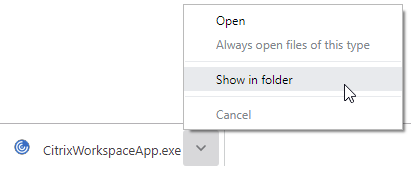
- Next right-click on CitrixWorkspaceApp.exe in the newly opened Windows File Explorer window and choose Run as administrator:

- You may be prompted to allow the app to make changes to your device. Choose Yes:

- Once you choose Yes, If any additional software is required, this will be installed (Prerequisites)

- You will be prompted with the Citrix Workspace setup welcome page. Click on Continue:

- You will then be prompted with a License Agreement page. Click on the I agree check box and then click Continue:

- You may be given the choice to configure Add-on(s). Leave the checkbox unticked and choose Install:

- The Citrix Workspace App will commence installing:

- If any prerequisites were installed during setup, you may be prompted to restart your machine to complete the setup. Choose Yes:

- After restarting, launch the Citrix Workspace application and you will then be prompted enter the server URL. Enter the AOD server address greentree.io and then click Continue:

- You will then be prompted to enter your email address and password to login:
If you have SAML Single Sign-On setup, you will be redirected to your company's login page to enter your company username and password.

- After you successfully log in you will be presented with the AOD Workspace. Available applications will vary depending on your provisioned access:

- It is also important at this point to set the High DPI setting to Yes via Advanced Preferences by right-clicking the Citrix Workspace icon in the system tray as shown below
The Citrix Receiver/Workspace icon is located in the system tray (the little icons next to the clock in the bottom right). If you can't see the icon, click the up arrow to the left of the little icons to show more icons:
- From Advanced Preferences click on High DPI, choose Yes and then click Save:


- From Advanced Preferences click on "Citrix Workspace Updates", choose "No, don't notify me" and then click Save:

- From Advanced Preferences click on "Keyboard and Language bar", choose the "Language bar" tab and select "No, hide the language bar" and click Save:

- Lastly, if you have not done so already, you should pin the Citrix Workspace client to the taskbar:
